QM-Pad | Tickets
The QM-Pad is the staff’s application to call and manage tickets. It is a web-based application, able to run in existing counter PCs, or in any other device with an access to a web-browser.
Contents
Login
Actions
Management
Summarized actions table
Information available on the QM-Pad
The QM-PAD includes information about:
- User logged in
- Counter name and tag
- All queues of the location (tag)
- Tickets waiting by queue
- Arrival time: the time the ticket was generated
- Service time (every time you call a ticket, a timer starts counting the handling duration)
- Who generated the ticket
- Ticket information: notes added by staff when transferring the ticket
Login
If you are already logged in on your Qube Admin, to open the QM-Pad scroll down on the left menu, and click on Tickets. Alternatively, open the Q-PAD directly and fill in your credentials and sign in.
Actions
In the bottom left Actions menu of the QM-Pad, you will be able to see your assigned Location and Counter.

To change these default assignments, follow the steps below, click on the respective desired action. On the QM-Pad actions’ bar, you can:
Return to Management > Clicking on Management will open your Qube’s Dashboard on another page.
Change Location > Clicking on the Change Location area will open your Qube Locations page. Once you select the desired location, you will be redirected to its QM-Pad.
Change Counters > Clicking on the Change Counters area will open a submenu. Select the desired counter where you want to assign yourself and click on OK.
ℹ️ You can only assign or change counters that have been previously associated to your account, on the Management> Users area. Contact your account’s administrators or service managers to assist on the permissions set.
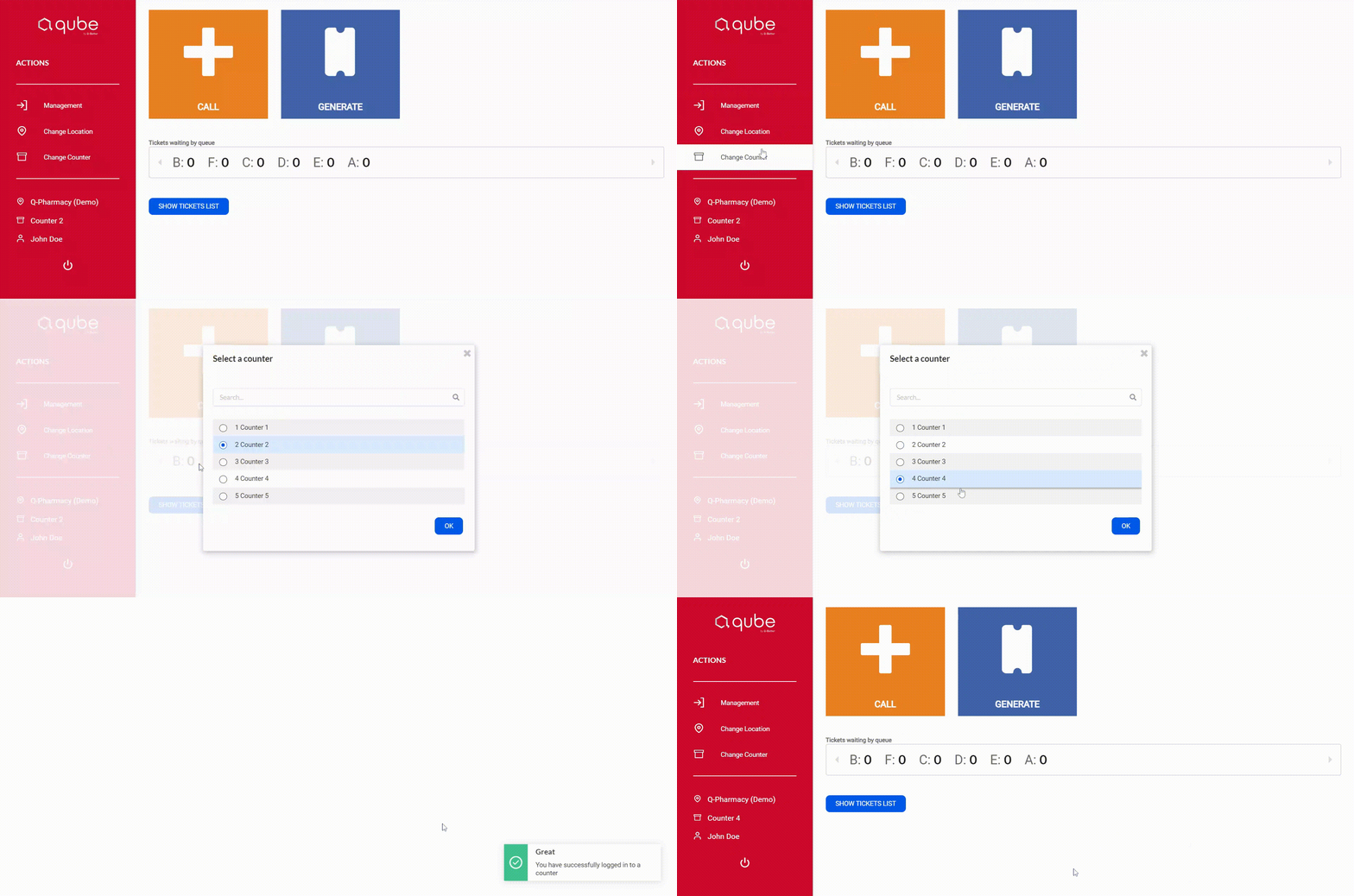
Log out > To Logout, click on the OFF button on the left menu of the QM-Pad.
Management
The QM-Pad is the dedicated platform to generate and manage tickets. Mastering the QM-Pad is key to ensuring accurate and insightful statistics for your operations. In this session, we will guide you through the essentials of QM-Pad management and its possible actions.
Generating a ticket
 ´
To generate a ticket, click on the Generate button in the QM-Pad, choose the service its priority. If you have a ticket kiosk connected to your location, you will be able to print that ticket, by clicking on the
´
To generate a ticket, click on the Generate button in the QM-Pad, choose the service its priority. If you have a ticket kiosk connected to your location, you will be able to print that ticket, by clicking on the Generate and Print button, and hand it over to the client. Alternatively, you can click on Generate, that ticket will be displayed and you simply mention it or write down to the visitor.
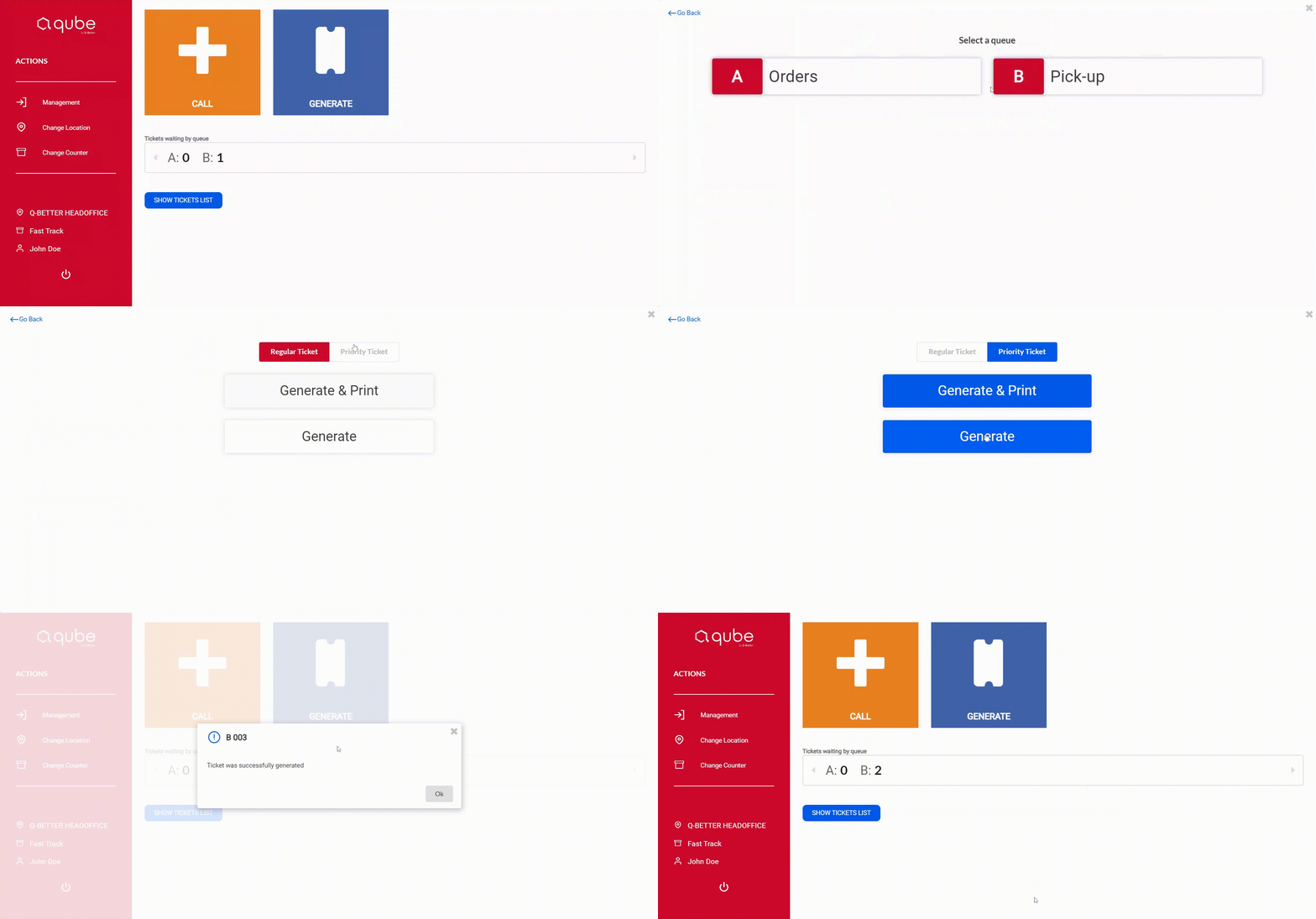
ℹ️ This action is mostly used to generate tickets for visitors who approach staff members directly.
Calling and Recalling a ticket
 Once a ticket is generated, you can call the next visitor by clicking on the Call button. If you need to recall a ticket, click on the Recall button. Every time a ticket is Called, or Recalled, its number will pop-up on the waiting area display. If the Voice Calling feature is active, the ticket will be called according to its configurations. Know more about the Voice Calling functionality here.
ℹ️ The Recalling action is useful if the visitor missed their turn. A ticket can be Recalled as many times needed (with 5 seconds apart). This button will only be available after calling a ticket.
Ending a service
 To end a service, click on the End button. This indicates that the visitor's service has been successfully completed. It is important to click this button to keep track of the progress and completion of each ticket.
ℹ️ This button will only be available after calling a ticket. If you close the QM-PAD while handling a ticket, that ticket will be kept open, meaning, being served.
Transferring a ticket
 To transfer a ticket, click on the Transfer button.
- Select the tab of the ticket destination type: Queues, Users or Counters
- Select the respective option (specific queue, user or counter)
- Add a text note to the transferred ticket in the Add a note field [Optional]
- Check the Tickets Priority: you can add/keep the ticket’s priority option if you wish to convert/keep the ticket into a priority ticket; if not, simply unselect the Priority Ticket box
- Click on the Transfer button ℹ️ This button will only be available after calling a ticket. Once transferred, the ticket will return to the respective queue and it will be positioned according to its generation time.
Pausing a ticket
 Click on the Pause button. Paused tickets will disappear from the QM-Pad.
To recall a paused ticket you must:
- Click on SHOW TICKETS LIST
- Select the PAUSED tab
- Click on the respective ticket to be called
ℹ️ This button will only be available after calling a ticket.
Cancelling a ticket
 If you want to recall a cancelled ticket, you need to add a ticket tolerance that will keep them available in the waiting tickets list. Know more about the ticket tolerance functionality on Assets.
To recall a cancelled ticket you must:
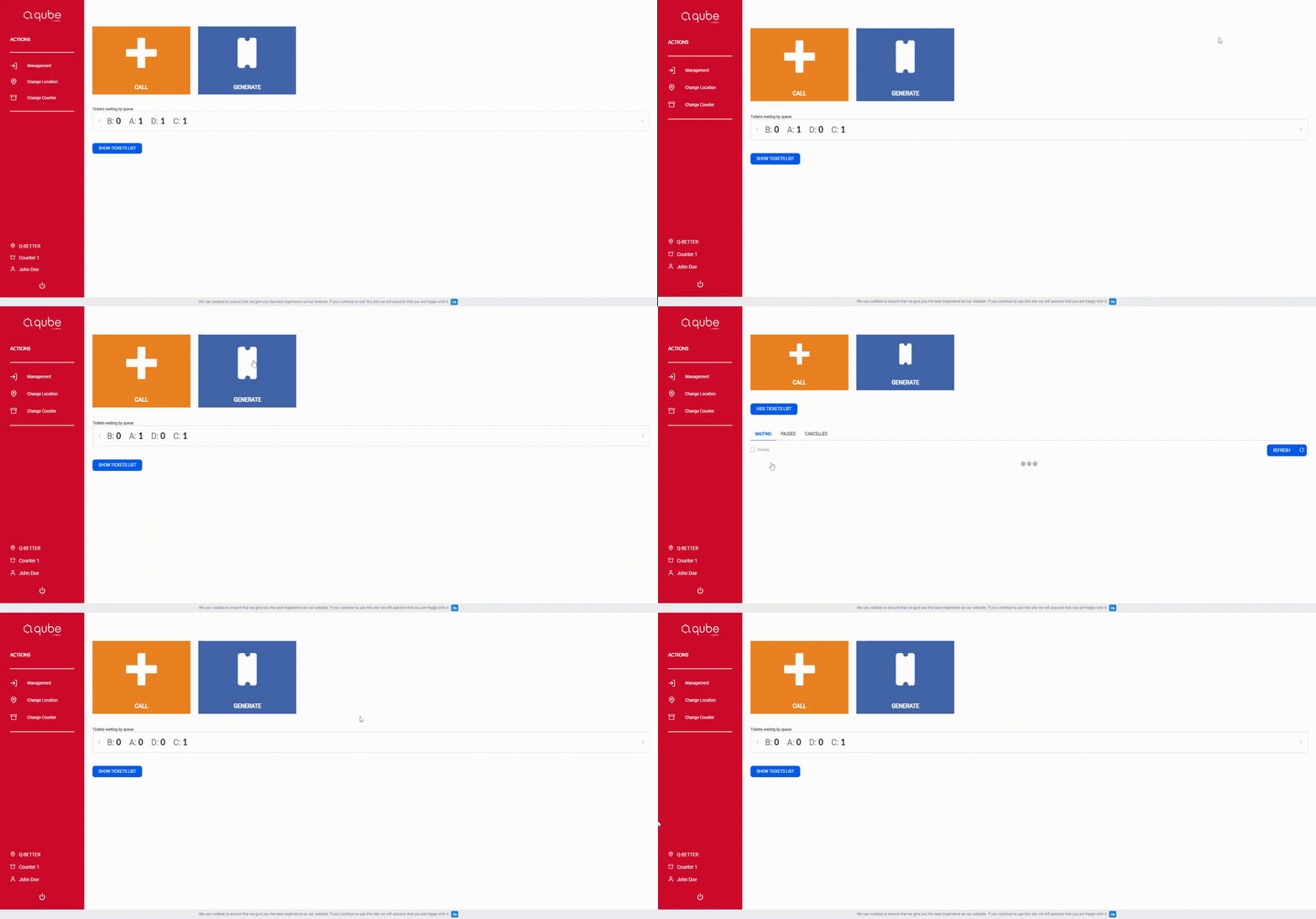
- Click on SHOW TICKETS LIST
- Select the CANCELLED tab
- Click on the respective ticket to be called
Calling specific tickets
To call a specific ticket you must click on SHOW TICKETS LIST, go to the Waiting tickets tab and select the respective ticket from the list.
Summing up
| Action | Meaning | Real Life Scenarios |
|---|---|---|
| Generate | Create a new ticket | The visitor needs assistance to generate a ticket, or there are no devices on-site |
| Call | Call a ticket in queue | Staff members are starting a new service |
| Recall | Recall the ticket just called | The ticket was called but the visitor hasn’t showed up, so the staff recalls for the ticket hoping the visitor won’t miss his turn |
| End | Finish the service | The visitor was successfully served and the service can be finished |
| Transfer | Transfer the ticket to a queue, user or counter | The visitor must be re-routed to another queue, user or counter. This can happen either because he/she took a ticket for the wrong queue, or because there are several stages of the service (e.g., a hospital) |
| Pause | Pause the service | The service must be paused, either because the visitor, or the staff, need to remove themselves from the service. |
| Cancel | Cancel the ticket (no-show) | The visitor left the service or did not show up in time to be called. |